If you wish to receive an email for RClone backup status, you can set that up as follow:
Setting up a GMail Project and client_secret.json File
- Create a new Gmail account (or use an existing gmail account).
- Go to Google Developer Console.
- Click Select a project
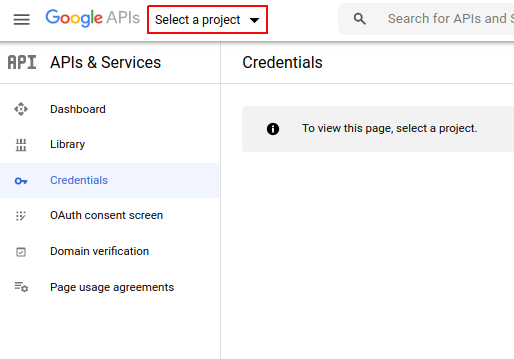
- Click New Project

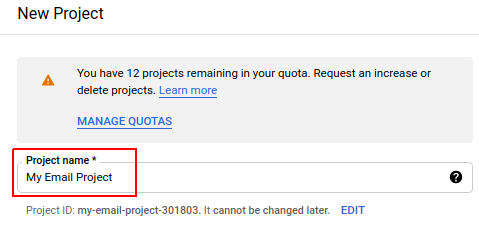
- Enter a project name, click Create
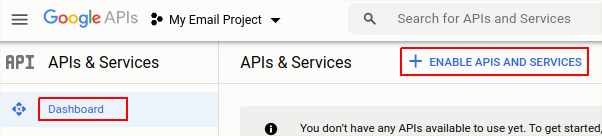
- Click Dashboard, and Enable APIs and Services
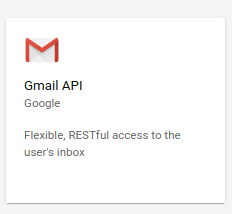
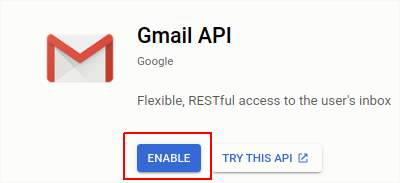
- Click Gmail API
- Click Enable
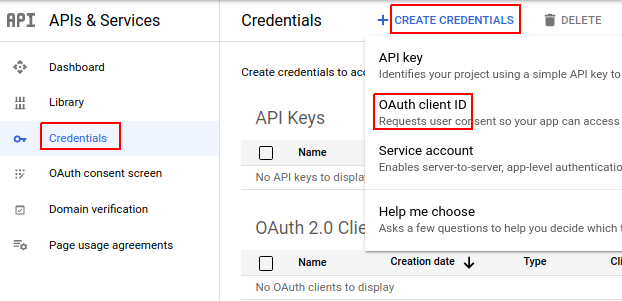
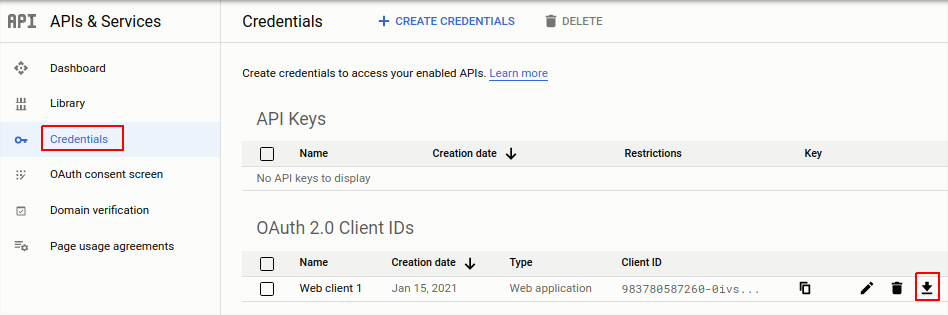
- Click Credentials, and Create Credentials
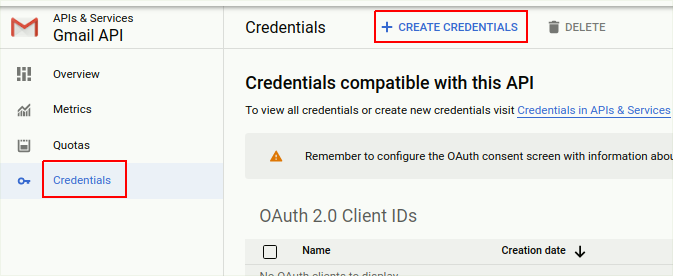
- Select OAuth client ID
- If you see a message about setting up a consent screen, click Configure Consent Screen
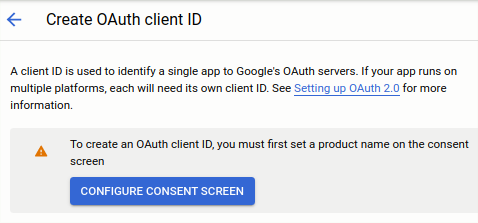
-
Click External and Create
-
Enter a name for your application (give it a memorable name)
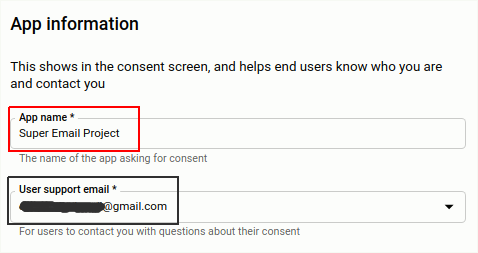
-
Scroll to the bottom, enter your email in the Developer contract information, click Save and Continue
-
Go to Credentials and Create Credentials, choose OAuth Client ID
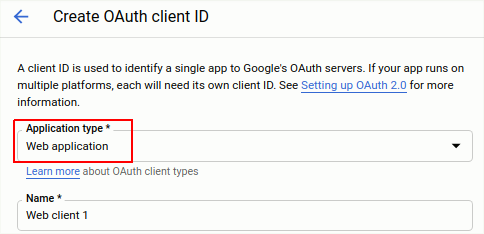
- Select Web application in Application Type
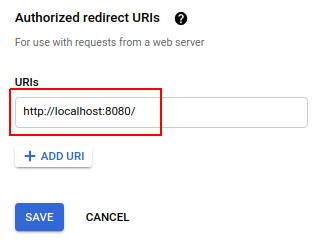
- Enter http://localhost:8080/ in the Authorized redirect URIs. Click Save
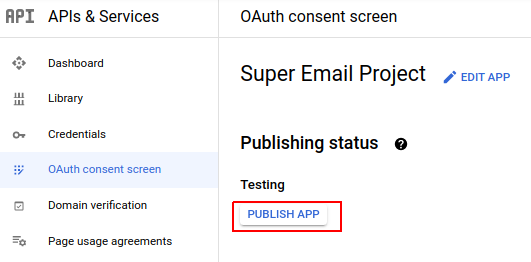
- Go to OAuth consent screen and click Publish
- Go back to Credentials and click download. Save the file as client_secret.json, save this file in the backup directory we created earlier.
Obtaining the gmail_token.json File
- Go to the backup directory. The client_secret.json should be in the directory: ```bash backup$ ls client_secret.json
2. Execute the following command in the **backup directory**:
```bash
python3 ../gphotos_rclone_backup/setupGmail.py
A window will appear and ask for permission to view and send email with your Gmail account. Select the Gmail you wanted to use.
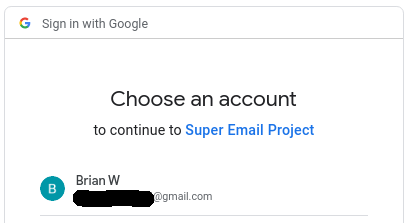
And you will see the following message when authentication is successful:
backup$ python3 ../gphotos_rclone_backup/setupGmail.py

Your browser has been opened to visit:

    https://accounts.google.com/o/oauth2/auth?client_id=126823426097-9444443upeboggdde69kmgm845re1tbo.apps.googleusercontent.com&redirect_uri=http%3A%2F%2Flocalhost%3A8080%2F&scope=https%3A%2F%2Fwww.googleapis.com%2Fauth%2Fgmail.modify&access_type=offline&response_type=code

Authentication successful.
You now have both client_secret.json and gmail_token.json files
backup$ ls -l
total 8
-rw------- 1 user user  402 Jan 16 20:19 client_secret.json
-rw------- 1 user user 1309 Jan 16 20:23 gmail_token.json
Sending a Test Email
Modify the email address below and send yourself a test email message:
backup$ echo "This is a test" > test.txt
backup$ python3 ../gphotos_rclone_backup/sendmail.py \
          "from.sender@gmail.com" "to.recipient@gmail.com" "First Email Message!" \
          -pm "./test.txt"
Check your email. An email message with subject “First Email Message!” should arrive your inbox.
Congratulations! Email functionality is now enabled.